

jdecorte-be/woody-woodpacker
A binary packer for ELF (32/64-bit) and Mach-O executables. Encrypts the .text section with RC4 and injects a self-decrypting shellcode payload.
Caution
The information you gather from this blog, all the techniques, proofs-of-concept code, or whatever else you may possibly find here, are strictly for educational purposes. I do not condone the usage of anything you might gather from this blog for malicious purposes. I've made this blog therein, to consolidate my learning by teaching it to the world.
Why This Matters
Ever wondered how malware authors hide their code, or how legitimate software protects intellectual property? The answer often lies in binary packing—a technique that compresses, encrypts, or otherwise transforms executables. This project takes you on a deep dive into creating your own Mach-O packer for macOS ARM64 binaries.
What You'll Learn:
- Master the Mach-O file format inside and out
- Implement dynamic library injection techniques
- Create a working packer that encrypts and decrypts code at runtime
- Navigate code signing challenges on modern macOS
- Debug and validate binary modifications with professional tools
Prerequisites: Basic C programming, familiarity with command-line tools, and curiosity about how executables work at the lowest level.
Understanding Mach-O
Welcome to the world of Mach-O files! Before we can dive into code injection or create something as cool as your own packer, we need to get our hands dirty and understand the intricate structure of these binaries. Think of this as your blueprint for understanding how macOS executables work under the hood.
By the end of this guide, you'll not only feel comfortable navigating a Mach-O file, but also confident in modifying one. Let's jump in.
What's a Mach-O File, Really?
Imagine a Mach-O file as a well-organized toolbox. Inside, you've got everything macOS needs to:
- Load the program into memory.
- Resolve any external dependencies (like dynamic libraries).
- Protect the program with security features.
- Execute the program starting at the right place.
It's a modular format, which means every piece has a job, and the system knows exactly where to find it. This precision makes Mach-O files powerful but also a little tricky to work with—mess up one part, and the whole thing might crash. That's why understanding its structure is so crucial.
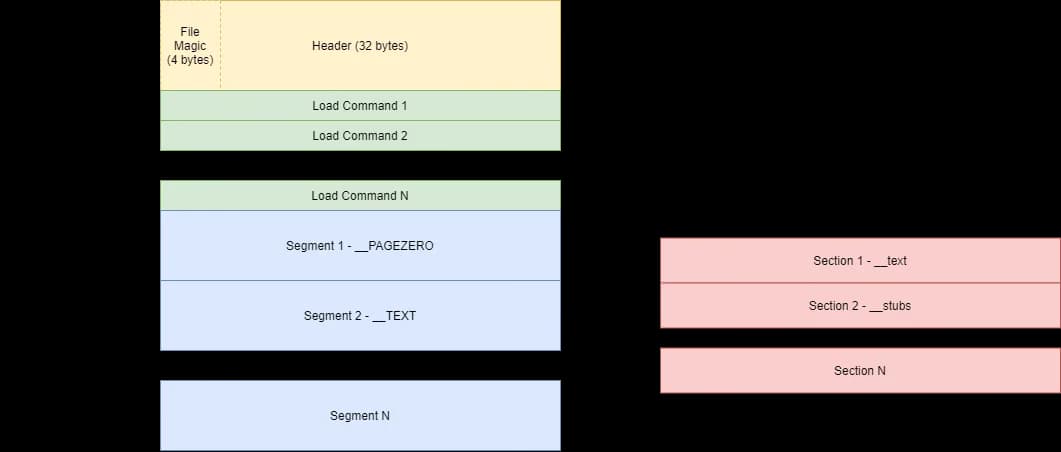
Memory Layout Visualization
When a Mach-O binary loads, macOS maps it into memory following this structure:
┌─────────────────────────┐
│   Mach-O Header         │ ← Identifies file type, architecture
├─────────────────────────┤
│   Load Commands         │ ← Instructions for loader
│   - LC_SEGMENT_64       │
│   - LC_LOAD_DYLIB       │
│   - LC_MAIN             │
│   - LC_CODE_SIGNATURE   │
├─────────────────────────┤
│   __TEXT Segment        │ ← Read-only executable code
│     └── __text section  │
│     └── __stubs section │
├─────────────────────────┤
│   __DATA Segment        │ ← Read/write data
│     └── __data section  │
│     └── __bss section   │
├─────────────────────────┤
│   __LINKEDIT Segment    │ ← Linking metadata
└─────────────────────────┘
Peeking Inside a Mach-O File
To understand a Mach-O file, let's break it down into its major components. Each part serves a specific purpose, like gears in a machine.
1. The Header: The File's Introduction
The header is the very first thing you'll find in a Mach-O file. It's like the front page of a book—it tells the system what kind of file it's dealing with. Here are some important details stored in the header:
- Magic Number: Identifies the file as a Mach-O binary (e.g.,
MH_MAGIC_64for 64-bit files). - CPU Type and Subtype: Specifies the architecture (like ARM64 for Apple Silicon).
- File Type: Indicates whether it's an executable, library, or object file.
- Load Command Info: Includes how many load commands follow and their total size.
The header is small but mighty. It's the first thing the system reads, so if it's corrupted, the program won't even start.
How to Inspect It: Want to see the header of a Mach-O file? Use otool like this:
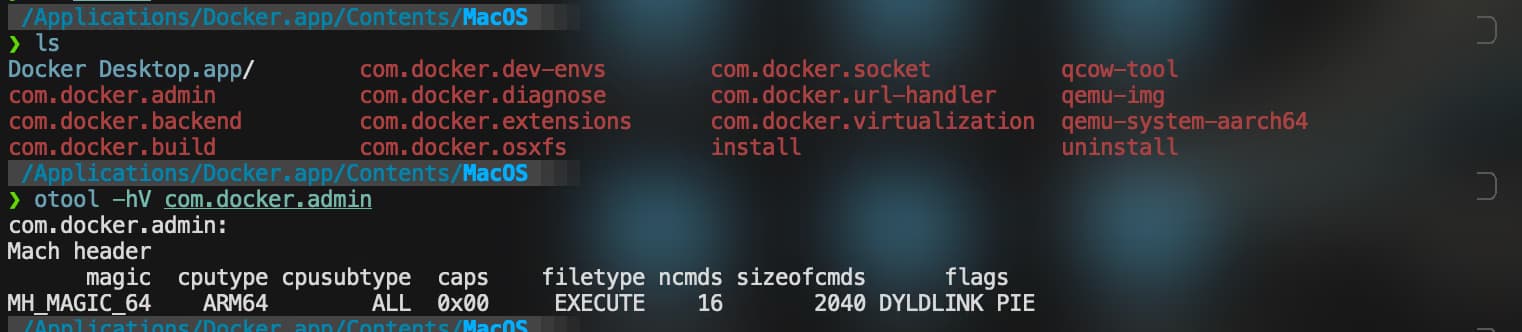
Example: Reading the Mach-O Header
Here's how to programmatically read and validate a Mach-O header:
#include <mach-o/loader.h>
#include <stdio.h>
#include <fcntl.h>
#include <unistd.h>

int validate_macho_header(const char *filepath) {
    int fd = open(filepath, O_RDONLY);
    if (fd < 0) {
        perror("Failed to open file");
        return -1;
    }

    struct mach_header_64 header;
    if (read(fd, &header, sizeof(header)) != sizeof(header)) {
        fprintf(stderr, "Failed to read header\n");
        close(fd);
        return -1;
    }

    // Validate magic number
    if (header.magic != MH_MAGIC_64) {
        fprintf(stderr, "Not a 64-bit Mach-O file\n");
        close(fd);
        return -1;
    }

    // Check architecture
    if (header.cputype == CPU_TYPE_ARM64) {
        printf("✓ Valid ARM64 Mach-O binary\n");
        printf("  CPU Type: ARM64\n");
        printf("  File Type: %u\n", header.filetype);
        printf("  Load Commands: %u\n", header.ncmds);
        printf("  Size of Commands: %u bytes\n", header.sizeofcmds);
    }

    close(fd);
    return 0;
}
2. Load Commands: The Brain of the Binary
Right after the header, you'll find the load commands. These are the real instructions for the operating system. They tell it how to:
- Map the binary into memory.
- Handle external libraries.
- Set up the entry point for execution.
Some of the most common load commands include:
- LC_SEGMENT_64: Describes segments in the binary, such as code or data.
- LC_LOAD_DYLIB: Points to dynamic libraries the binary depends on.
- LC_MAIN: Tells the system where to start execution.
- LC_CODE_SIGNATURE: Holds the code signature to verify the binary's integrity.
Why Load Commands Matter: When you're injecting code or adding functionality, these commands will likely be the first thing you modify. For instance, adding a new library involves inserting an LC_LOAD_DYLIB command. Want to redirect execution? You'll tweak the LC_MAIN command.
Toolbox Tip: Run this command to list all load commands in a Mach-O file:
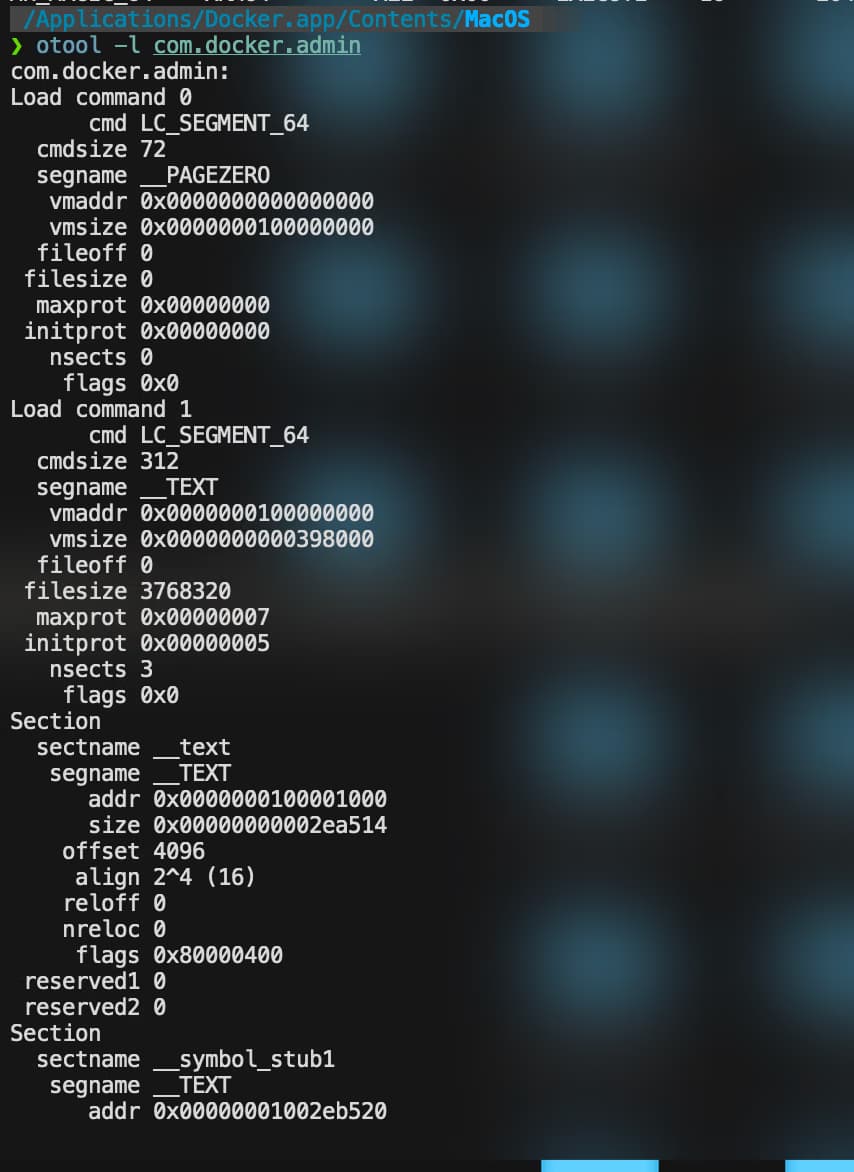
3. Segments and Sections: The Binary's Organization
Segments are like the big rooms in a house, and sections are the furniture inside them. Segments divide the binary into logical regions, such as:
__TEXTSegment: Where the program's code lives. This segment is read-only and executable.__text Section: The actual machine instructions.__stubs Section: Data for dynamically linked functions.
__DATASegment: Holds writable data like global variables.__data Section: Stores initialized global variables.__bss Section: Contains uninitialized variables.
__LINKEDITSegment: Stores metadata for linking, like symbol tables.
Note
Why They Matter: If you're injecting code, you'll likely add it to the __TEXT segment or create a new segment altogether. Segments also dictate permissions (read, write, execute), so you'll need to ensure your modifications don't break these rules.
4. Entry Point: Where the Magic Starts
The entry point is where the system starts executing your program. It's defined by the LC_MAIN load command, which provides the offset to the starting function. This is the heart of the binary, and modifying it is common in code injection.
Here's what you'll do when injecting:
- Redirect the entry point to point to your custom loader.
- Have your loader do its thing (decrypting, decompressing, etc.).
- Jump back to the original entry point to resume normal execution.
The Mach-O Packer: Advanced Techniques
Now that you have a solid understanding of the Mach-O file structure, let's take it up a notch and explore advanced techniques. These are the methods that transform basic binary modifications into powerful, functional injections. By mastering these tricks, you'll not only be able to manipulate Mach-O files but also handle the challenges that come with making those changes while keeping the binary operational.
Advanced Mach-O Tricks: Dynamic Injection
In this section, we focus on the art of dynamic injection—adding a dynamic library to an existing Mach-O binary. This is the core of the WoodyWoodpacker project and an essential skill for modifying macOS executables. Dynamic library injection allows you to extend the functionality of a program without rewriting its original code, making it a powerful tool for customization, testing, or, in our case, creating a dynamic injection system.
Let's break down the techniques, challenges, and best practices to seamlessly inject a library into a Mach-O binary.
What is Dynamic Library Injection?
Dynamic library injection involves modifying a Mach-O binary to include a new LC_LOAD_DYLIB load command. This command instructs macOS to load a specified dynamic library at runtime. Once loaded, the library's functions become accessible to the binary, allowing you to introduce new behavior or augment existing functionality.
In essence, you're embedding a new dependency into the binary. The operating system will treat this library as if it were always part of the program.
Injecting a Dynamic Library: The Process
Dynamic injection involves a few key steps:
- Extend the Load Commands: Add a new
LC_LOAD_DYLIBcommand to reference your library. - Adjust the Mach-O Header: Update the number and size of load commands in the header.
- Ensure Space for the Library Path: Write the path of the library into the binary, ensuring alignment and padding.
- Test and Debug: Validate that the binary successfully loads your library at runtime.
Step 1: Extending the Load Commands
The first step in dynamic injection is adding an LC_LOAD_DYLIB load command. This command contains the library path and metadata, such as the library's compatibility and current version.
A typical LC_LOAD_DYLIB command structure looks like this:
struct dylib_command {
    uint32_t cmd;       // LC_LOAD_DYLIB
    uint32_t cmdsize;   // Size of this command
    struct dylib {
        uint32_t name;  // Offset to the library path
        uint32_t timestamp;
        uint32_t current_version;
        uint32_t compatibility_version;
    } dylib;
};
To add this command, locate the end of the existing load commands, append the LC_LOAD_DYLIB structure, and write the library path. Ensure the cmdsize includes the size of the structure and the library path, padded to alignment.
Step 2: Adjusting the Mach-O Header
The Mach-O header specifies the total number and size of load commands. After adding the new load command, update these fields to reflect the changes:
- Increment the
ncmdsfield to include the new command. - Add the size of the new load command to
sizeofcmds.
Example:
struct mach_header_64 header;
fread(&header, sizeof(header), 1, binary_file);
header.ncmds += 1;
header.sizeofcmds += new_command_size;
fseek(binary_file, 0, SEEK_SET);
fwrite(&header, sizeof(header), 1, binary_file);
Step 3: Writing the Library Path
The LC_LOAD_DYLIB command includes an offset to the library path, which must be appended to the binary. The path must be null-terminated and padded to maintain alignment.
For instance, if you're injecting a library located at /usr/local/lib/my_library.dylib, ensure the path fits within the allocated space. If not, you may need to extend the binary.
Here's how you might append a library path:
char library_path[] = "/usr/local/lib/my_library.dylib";
size_t path_size = strlen(library_path) + 1;  // Include null terminator
fwrite(library_path, path_size, 1, binary_file);
Step 4: Testing the Injection
Dynamic library injection isn't complete until you test your changes. Load the modified binary in a debugger or simply run it to ensure that:
- The library loads without errors.
- The program executes as expected.
- The new functionality introduced by the library is active.
Using otool, you can confirm that your library was successfully added:
otool -L modified_binary
You should see your injected library listed alongside the binary's original dependencies.
Common Pitfalls in Dynamic Injection
Problem 1: Library Not Found at Runtime
Symptom: dyld: Library not loaded error
Solution: Use absolute paths or @rpath, @executable_path, or @loader_path prefixes
// Instead of:
char library_path[] = "libmylibrary.dylib";

// Use:
char library_path[] = "@executable_path/libmylibrary.dylib";
Problem 2: Segment Alignment Issues
Symptom: Binary crashes with EXC_BAD_ACCESS
Solution: Ensure all segments are page-aligned (4096 bytes on ARM64)
// Calculate aligned size
size_t align_to_page(size_t size) {
    const size_t page_size = 0x1000; // 4096 bytes
    return (size + page_size - 1) & ~(page_size - 1);
}
Problem 3: Code Signature Invalidation
Symptom: "code signature invalid" error on execution
Solution: Remove LC_CODE_SIGNATURE or re-sign with ad-hoc signature
# Remove code signature
codesign --remove-signature woody

# Or re-sign with ad-hoc signature (for development only)
codesign -s - woody
Challenges and Considerations
Alignment and Padding
Mach-O binaries are highly sensitive to alignment. Ensure that the library path and load command are properly padded to align with memory boundaries. Failure to do so can corrupt the binary.
File Size Limits
Extending the binary may require resizing its segments. If there isn't enough space for your library path, you might need to move or realign existing sections.
Code Signing
Modifying a Mach-O binary invalidates its code signature. To bypass this, you can remove the LC_CODE_SIGNATURE command. However, this disables macOS security checks and should only be used in controlled environments.
Building Your Own Packer: Step-by-Step Workflow
Phase 1: Analysis (Preparation)
Identify the target binary structure
otool -h target_binary          # View header
otool -l target_binary          # List load commands
otool -s __TEXT __text target   # Dump text section
Locate injection points
- Find the entry point (
LC_MAIN) - Identify available padding or cave spaces
- Check for existing dynamic libraries
- Find the entry point (
Phase 2: Payload Development
Create your injection library
// payload.c - Simple loader stub
__attribute__((constructor))
void woody_init(void) {
    write(1, "....WOODY....\n", 14);
    // Decrypt main executable code here
}
Compile as dynamic library
clang -shared -o libwoody.dylib payload.c -arch arm64
Phase 3: Binary Modification
- Parse the Mach-O structure
- Add LC_LOAD_DYLIB command
- Update header metadata
- Write modified binary
Phase 4: Testing & Validation
# Verify structure
otool -L woody                      # Check dynamic libraries
nm -m woody                         # Check symbols

# Debug execution
lldb woody
(lldb) run
(lldb) image list                   # Verify library loaded
Project Structure Explained
42-WoodyWoodpacker/
├── src/
│   ├── macho_parser.c       # Mach-O structure parsing
│   ├── injection.c          # Dynamic library injection logic
│   ├── encryption.c         # Payload encryption/decryption
│   └── woody.c              # Main entry point
├── payloads/
│   ├── loader_stub.s        # ARM64 assembly loader
│   └── decrypt_stub.c       # Decryption routine
├── include/
│   ├── woody.h              # Main header
│   └── macho_structures.h   # Mach-O definitions
└── encryption/
    └── rc4.c                # RC4 encryption implementation
Key Components:
macho_parser.c - Handles reading, parsing, and validation of Mach-O structures
injection.c - Implements LC_LOAD_DYLIB injection and entry point modification
loader_stub.s - Hand-crafted ARM64 assembly for minimal overhead
encryption.c - Encrypts target sections and embeds decryption keys
Resources for Deep Diving
Essential Documentation
Tools to Master
# Binary inspection
otool -tv binary        # Disassemble
nm binary               # List symbols
file binary             # Identify file type
hexdump -C binary       # Raw hex dump

# Debugging
lldb binary             # LLDB debugger
dtruss binary           # System call tracing (requires SIP disable)

# Verification
codesign -v binary      # Verify signature
codesign -d -vvv binary # Display signature details